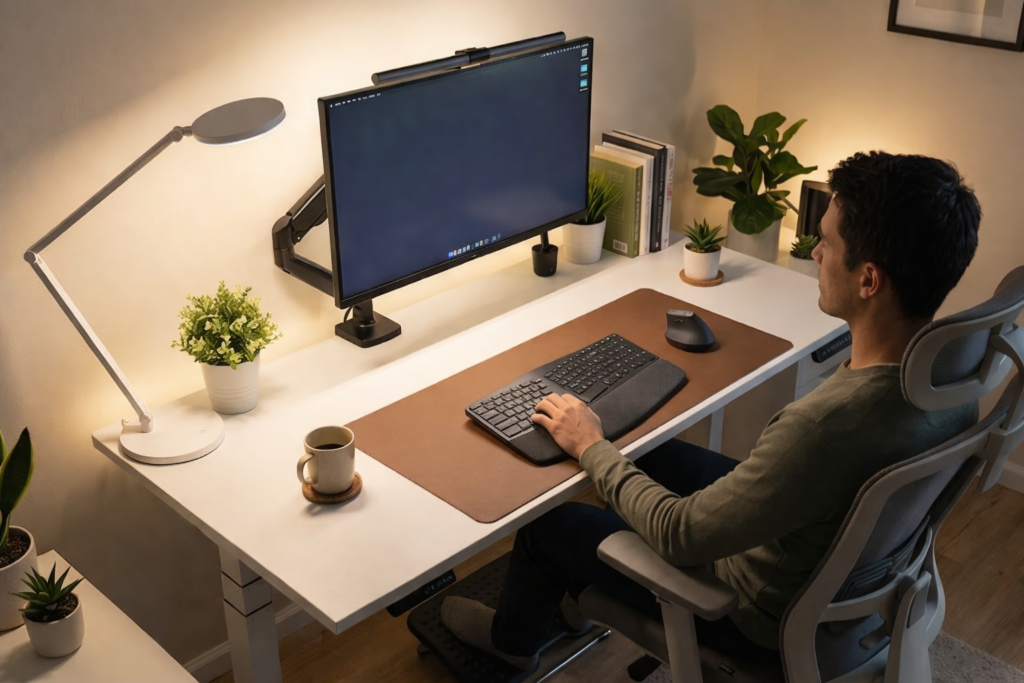
Working on a computer for hours can leave your eyes feeling tired, dry, or blurry before the day is even over. Many people assume the screen itself is the main problem, but poor lighting is often the real cause.
A bad desk lighting setup creates glare, harsh contrasts, and shadows that force your eyes to work harder than they should. Over time, this can lead to headaches, fatigue, and reduced productivity.
The good news is that a few simple lighting adjustments can make a major difference. When your workspace lighting is balanced and positioned correctly, your eyes stay relaxed and your focus improves.
In this guide, you’ll learn practical ways to reduce eye strain when working on a computer and how to create a desk lighting setup that actually works.
Key Takeaways
• Balanced lighting reduces eye fatigue and improves focus
• Avoid glare by positioning lights carefully around your monitor
• Use adjustable desk lamps to control brightness and color temperature
• Combine ambient lighting with task lighting for best results
• Small lighting changes can dramatically improve comfort during long work sessions
Why Your Current Desk Lighting Setup Is Causing Eye Strain
Many home office setups unintentionally create conditions that strain the eyes. Computer screens already demand visual effort, and poor lighting can amplify the problem.
The Screen Glare Problem
Glare happens when light reflects directly off your monitor. This reflection reduces contrast and forces your eyes to constantly adjust.
Common sources of glare include:
• Overhead lights positioned behind you
• Desk lamps shining toward your screen
• Direct sunlight from nearby windows
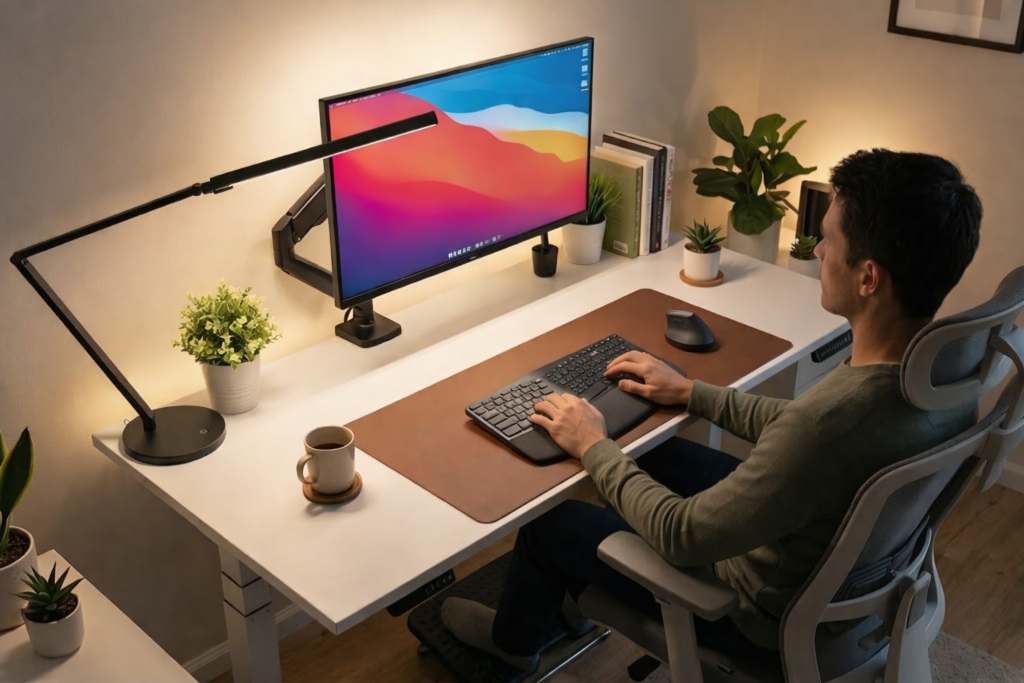
To minimize glare, place your light sources beside your monitor instead of directly in front or behind it.
Insufficient or Excessive Brightness
Both dim lighting and overly bright lighting can cause eye strain.
If the room is too dark, your eyes struggle to balance the bright screen against a dark background. If the room is too bright, the contrast becomes uncomfortable.
You can create better balance by:
• Matching room brightness with screen brightness
• Using adjustable desk lamps
• Avoiding direct lighting on the screen
The Wrong Color Temperature
Color temperature affects how comfortable your lighting feels.
Measured in Kelvin (K), it determines whether light appears warm or cool.
Recommended ranges for computer work:
• 3000K – 3500K: warmer light for evening work
• 4000K – 5000K: neutral light ideal for daytime productivity
Lighting that is too cool or too harsh can increase eye fatigue during long sessions.
Types of Desk Lighting Products That Actually Help
The right lighting tools can dramatically reduce eye strain and improve visual comfort.
LED Desk Lamps with Adjustable Settings
LED desk lamps are one of the most effective lighting solutions for computer work.
Benefits include:
• Adjustable brightness levels
• Customizable color temperatures
• Energy efficiency
• Long lifespan
Many modern lamps allow you to adjust the light depending on the task you are doing.
For additional lighting ideas and workspace improvements, see this guide.
ergonomic home office accessories
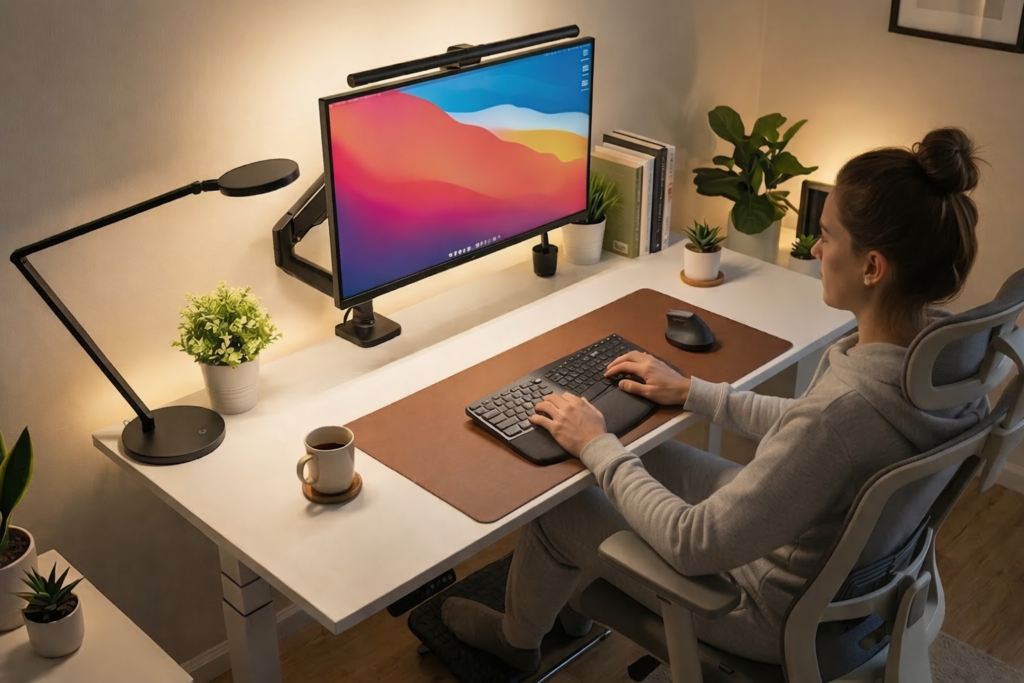
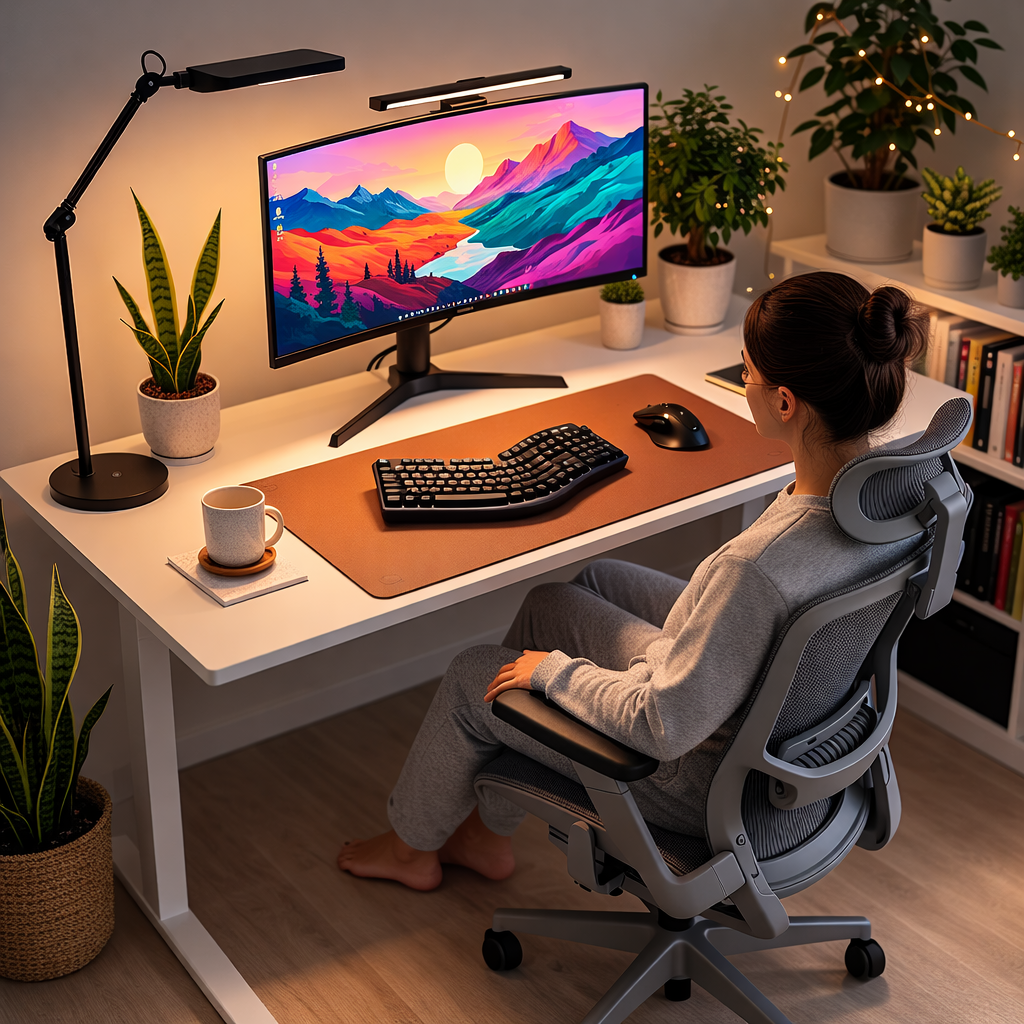
Monitor Light Bars
Monitor light bars sit on top of your screen and shine light downward onto your desk.
Advantages include:
• Reduced screen glare
• Soft indirect lighting
• Minimal desk space usage
• Easy installation
They are especially useful for minimalist desk setups.
Bias Lighting and LED Light Strips
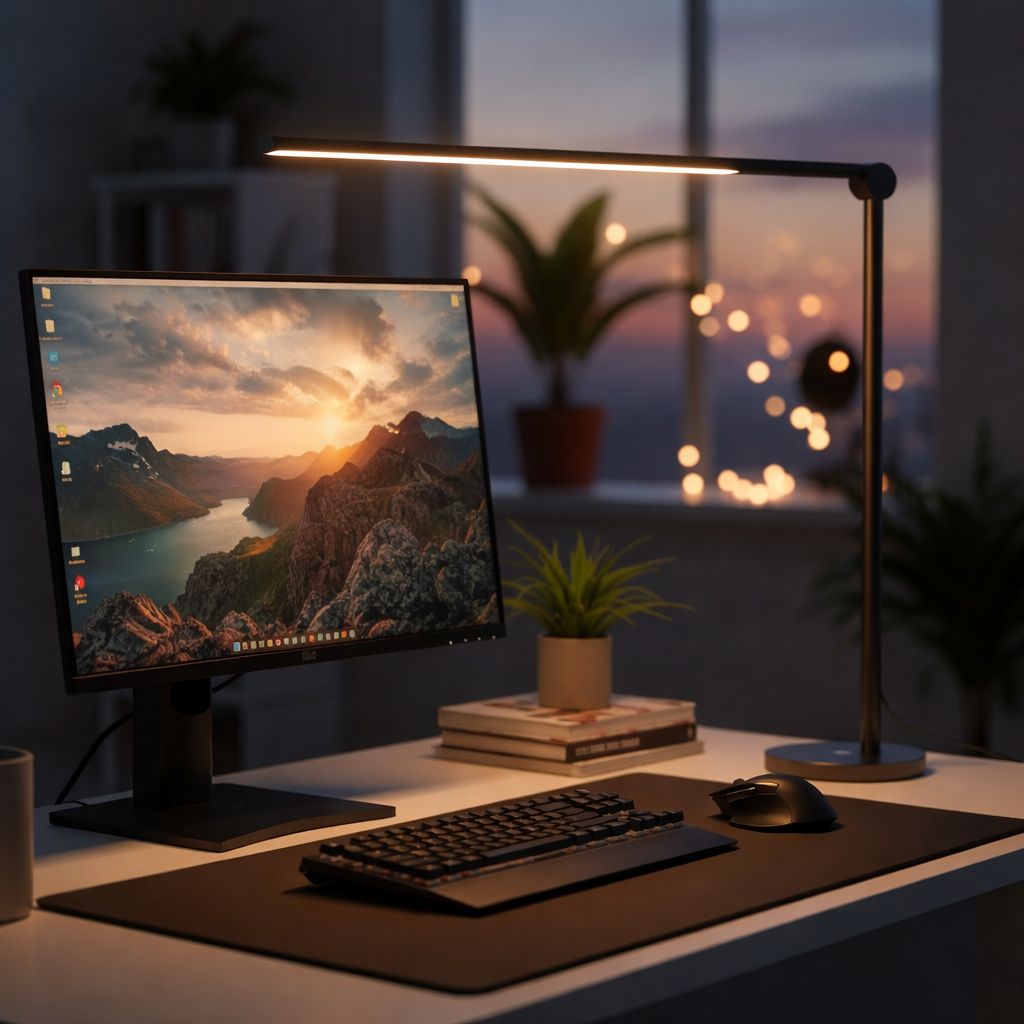
Bias lighting is soft light placed behind a monitor or desk.
This lighting technique helps reduce eye strain by balancing the brightness between the screen and the surrounding environment.
Benefits include:
• Reduced contrast between screen and room
• Comfortable nighttime viewing
• Improved visual depth and workspace atmosphere
Floor and Ambient Lighting
Ambient lighting fills the entire room with soft light. This helps prevent your desk area from being the only bright spot in a dark room.
Examples include:
• floor lamps
• wall lighting
• ceiling lighting
Combining ambient lighting with desk lamps creates a more balanced workspace.
Essential Features to Look for When Buying Desk Lighting
Not all desk lighting products are equal. Some features can dramatically improve comfort during long work sessions.
Color Temperature Range
Look for lamps that allow adjustable color temperatures.
A range between 3000K and 5000K is ideal for computer work.
This flexibility lets you adjust lighting depending on the time of day.
Brightness Control and Dimming
Adjustable brightness prevents lighting from becoming too harsh or too dim.
Dimming features help you:
• match screen brightness
• reduce glare
• create comfortable evening lighting
Flicker-Free Technology
Cheap lighting can produce subtle flickers that strain the eyes.
High-quality LED lighting with flicker-free technology helps prevent headaches and fatigue.
Adjustable Arms and Flexible Positioning
A flexible lamp arm allows you to place light exactly where it is needed.
Proper positioning reduces glare and keeps light focused on your desk instead of your screen.
How to Reduce Eye Strain When Working on a Computer
Improving your lighting setup doesn’t require a full office redesign. A few simple changes can dramatically improve visual comfort.
Use the Three-Layer Lighting Method
Professional workspaces often use three lighting layers:
Ambient lighting
Lights the entire room.
Task lighting
Focused desk lighting for work areas.
Accent lighting
Additional lighting to reduce harsh contrast.
This combination creates a balanced and comfortable workspace.
Position Lights Correctly
Light placement is just as important as brightness.
Best placement tips:
• Place desk lamps to the side of your monitor
• Avoid placing lights directly behind your screen
• Use blinds or curtains to control sunlight
This prevents reflections and improves visual clarity.
For a full home office setup guide, see this resource.
ultimate ergonomic desk setup for productivity
Match Light Intensity with Screen Brightness
Your screen should not be dramatically brighter than your surrounding environment.
Adjust lighting so that:
• the screen blends naturally with the room
• there is no harsh contrast
• your eyes do not constantly adjust
Follow the 20-20-20 Rule
Lighting helps, but eye breaks are equally important.
Follow the 20-20-20 rule:
Every 20 minutes
Look at something 20 feet away
For at least 20 seconds
This simple habit can significantly reduce digital eye strain.
Conclusion
Reducing eye strain while working on a computer starts with better lighting.
A well-designed desk lighting setup improves focus, reduces fatigue, and makes long work sessions far more comfortable.
The most effective strategy includes:
• balanced ambient lighting
• adjustable desk lamps
• glare reduction techniques
• proper monitor positioning
Even small improvements to your lighting can have a noticeable impact on productivity and eye health.
For additional lighting recommendations that protect your eyes during long computer sessions, explore our guide to the best LED desk lamps for eye care
Disclaimer
This article is for informational purposes only and should not replace professional medical, financial, or technical advice.