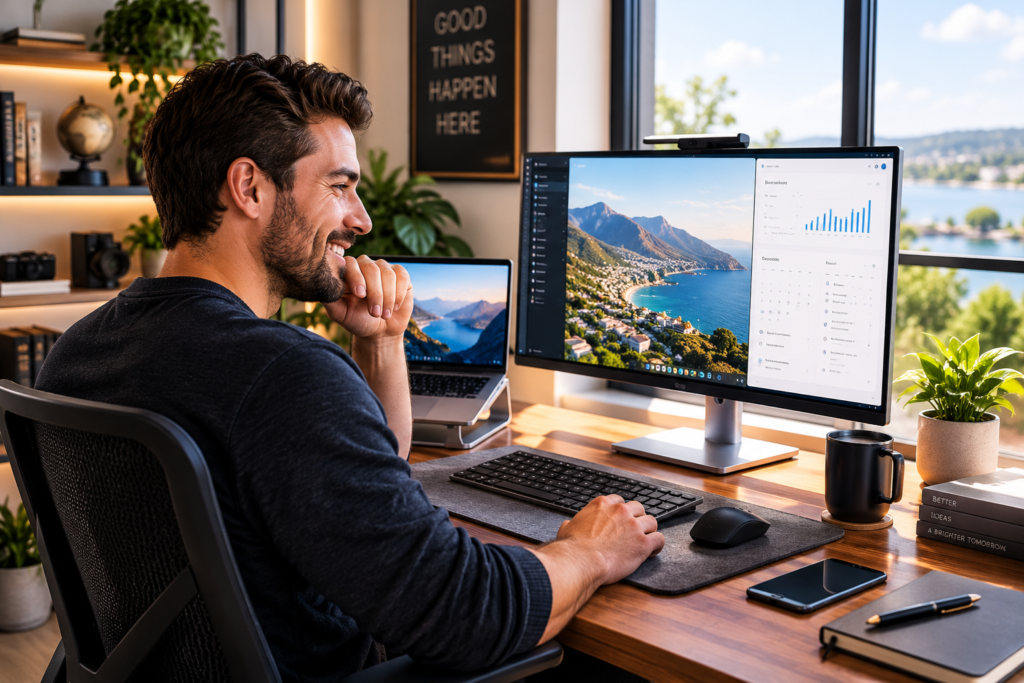
Looking for the best monitor for working from home? Compare 5 excellent monitors for productivity, remote work, video calls, creative work and everyday home-office use.
Working from home becomes a lot easier when you have enough screen space.
A laptop may be perfectly fine for checking email or handling a quick task, but spending an entire workday switching between spreadsheets, browser tabs, documents, video calls and messaging apps on a small screen can get frustrating fast.
A good external monitor can completely change the way a home office feels.
The right monitor gives you more room to work, makes multitasking easier and can help create a cleaner, more comfortable workstation.
But you don’t necessarily need the most expensive monitor you can find.
For most remote workers, the sweet spot is a 27-inch monitor with a sharp display, good connectivity and enough adjustability to create a comfortable workspace.
Below are five monitors worth considering depending on how you work.
Quick Pick: For most people working from home, a 27-inch QHD monitor offers an excellent balance of screen space, sharpness and price. If you regularly work with detailed graphics or simply want exceptionally crisp text, stepping up to 4K can make sense.
Quick Comparison
| Monitor | Resolution | Best For |
|---|---|---|
| BenQ GW2790Q | 27″ QHD | Best budget-friendly everyday option |
| ASUS ProArt PA278QV | 27″ QHD | Creative and color-sensitive work |
| Dell S2725DC | 27″ QHD | Modern USB-C home offices |
| LG 27UP850-W | 27″ 4K | 4K productivity and USB-C |
| Dell S2725QC | 27″ 4K | Premium all-around home-office setup |
1. BenQ GW2790Q — Best Budget-Friendly Pick
For someone who mainly works with email, spreadsheets, documents, browser applications and video meetings, the BenQ GW2790Q offers a very practical combination of features.
It has a 27-inch IPS display with 2560 × 1440 QHD resolution and a 100Hz refresh rate. BenQ also lists a 99% sRGB color gamut and an anti-glare display.
QHD is particularly attractive for a 27-inch office monitor because it provides considerably more working space than standard 1080p without requiring you to move all the way up to a premium 4K setup.
Why it works well for remote work
The extra resolution gives you room for things like:
- A document beside a browser
- Two spreadsheets
- Email beside your calendar
- Research beside a writing application
That makes this a sensible choice for someone who wants a straightforward productivity monitor without paying for features they may never use.
Best for
Remote workers, students, administrative work, spreadsheets, web browsing and general home-office productivity.
Check the BenQ GW2790Q price on Amazon
2. ASUS ProArt PA278QV — Best for Creative Work
If your work involves photography, graphics, website design, Pinterest graphics or other visual content, the ASUS ProArt PA278QV is worth a closer look.
This 27-inch IPS monitor provides a 2560 × 1440 QHD resolution, 100% sRGB and 100% Rec. 709 coverage. ASUS says the display is factory calibrated and Calman Verified with Delta E below 2.
It also includes an ergonomic stand with height, tilt, swivel and pivot adjustment.
That combination makes it particularly appealing for someone who needs good color performance but still wants a monitor that functions well as an everyday productivity display.
Why it works well for remote work
You’re not limited to creative applications.
You can use the same screen for documents and spreadsheets during the workday and switch to photo editing, graphics or other creative projects afterward.
The adjustable stand is another useful home-office feature because monitor height can make a surprisingly big difference in how comfortable a desk setup feels.
Best for
Content creators, photographers, designers, bloggers and remote workers who care about color accuracy.
Check the ASUS ProArt PA278QV price on Amazon
3. Dell S2725DC — Best for a Modern USB-C Workspace
If you use a modern laptop, USB-C connectivity can simplify your desk considerably.
Instead of treating your monitor as nothing more than another screen, a USB-C monitor can become part of a cleaner workstation with fewer connections to manage.
The Dell S2725DC is a 27-inch QHD monitor with a 2560 × 1440 resolution, USB-C connectivity, built-in speakers and a refresh rate up to 144Hz.
That higher refresh rate isn’t necessary for writing emails or editing spreadsheets, but it can make scrolling, window movement and general onscreen motion feel smoother.
Why it works well for remote work
This is the type of monitor that makes sense for someone building a streamlined laptop-based home office.
Pair it with a good keyboard and mouse and you’ve got a much more desktop-like environment without giving up the portability of your laptop.
Best for
Laptop users, hybrid workers and anyone who wants a cleaner USB-C desk setup.
Check the Dell S2725DC price on Amazon
4. LG 27UP850-W — Best 4K USB-C Option
If sharp text and detailed images are priorities, consider moving from QHD to 4K.
The LG 27UP850-W combines a 27-inch IPS panel with 3840 × 2160 4K UHD resolution.
LG also lists USB-C with up to 96W power delivery, VESA DisplayHDR 400, 95% DCI-P3 coverage and a height-, pivot- and tilt-adjustable stand.
The USB-C connection is particularly useful for compatible laptops because one connection can help create a much cleaner workstation.
Why it works well for remote work
4K provides very high pixel density on a 27-inch display.
That can be especially useful if your work involves:
- Lots of text
- Detailed spreadsheets
- Photo editing
- Graphic design
- Web design
- Video editing
- Multiple application windows
The ability to deliver power through USB-C can also reduce cable clutter with compatible laptops.
Best for
Professionals wanting 4K resolution, creators and USB-C laptop users.
Check the LG 27UP850-W price on Amazon
5. Dell S2725QC — Best Premium All-Around Choice
For someone who wants a modern monitor that can handle work during the day and entertainment afterward, the Dell S2725QC is another strong option.
It combines a 27-inch 4K UHD display with USB-C connectivity and a refresh rate up to 120Hz.
That gives you the sharpness of 4K while also providing smoother motion than a traditional 60Hz office monitor.
It’s more monitor than someone answering email for a few hours a day necessarily needs, but it makes more sense for a workstation used heavily throughout the week.
Best for
Full-time remote workers, multitaskers and anyone building a higher-end home office.
Check the Dell S2725QC price on Amazon
What Size Monitor Is Best for Working From Home?

For most people, 27 inches is the sweet spot.
A 24-inch monitor can still be perfectly adequate, especially when desk space is limited. But 27 inches provides enough physical space for multitasking without taking over a typical home-office desk.
Once you move into 32-inch displays, you gain considerably more screen space, but the monitor also requires more desk depth and may feel oversized in a small workspace.
For a typical home office, start by looking at:
27-inch + QHD (2560 × 1440)
or
27-inch + 4K (3840 × 2160)
Both can work extremely well.
Is QHD or 4K Better for Working From Home?
This depends largely on what you do.
Choose QHD if:
You primarily work with documents, spreadsheets, websites, email, administrative software and video conferencing.
QHD provides plenty of workspace and usually costs less than a comparable 4K display.
Choose 4K if:
You value exceptionally sharp text, work with high-resolution photos or video, create graphics, or simply want more pixel density.
For many office workers, however, QHD already represents a significant improvement over a laptop display or 1080p monitor.
Should You Buy One Large Monitor or Two Monitors?
There’s no universal winner here.
A single 27-inch monitor creates a clean, simple workspace and works extremely well for most people.
Two monitors become useful when you’re constantly comparing information between applications.
For example, you could keep a spreadsheet on one screen while using a browser on the other.
If you’re considering two monitors, your laptop may not have enough display outputs by itself.
That’s where a docking station can become useful.
Related Guide:
USB-C Hub vs Docking Station
Related Guide:
Best USB-C Dock for Multiple Monitors
What to Look for in a Home-Office Monitor
Don’t choose a monitor based on resolution alone.
Screen Size
For most desks, 27 inches provides a good balance between usable workspace and physical size.
Resolution
For a 27-inch monitor, QHD is an excellent starting point.
4K provides greater detail but typically costs more.
IPS Panel
IPS displays generally provide good viewing angles and consistent color, making them a popular choice for productivity monitors.
USB-C
If your laptop supports video and charging through USB-C, a compatible USB-C monitor can dramatically simplify your setup.
Instead of several cables running across your desk, you may be able to connect the laptop using a much simpler configuration.
Adjustable Stand
Don’t overlook this.
Being able to adjust monitor height, tilt and position can make your workspace significantly more comfortable.
VESA Compatibility
VESA compatibility lets you attach the monitor to a compatible monitor arm.
That can free up desk space while giving you additional positioning flexibility.
Don’t Forget Monitor Position
Buying a good monitor is only part of creating a comfortable workstation.
Where you put it matters too.
Your monitor shouldn’t force you to spend eight hours looking sharply downward or constantly turning your head.
If the original stand doesn’t provide enough flexibility, a monitor arm may be worth considering.
Related Guide:
Best Desk Lamp Placement for Eye Comfort
You can also reduce harsh lighting around your workspace with a properly positioned desk lamp or monitor light bar.
Related Guide:
Best Monitor Light Bars for Eye Strain and Long Work Hours
Which Monitor Should You Choose?
If you’re trying to keep the cost reasonable, start with the BenQ GW2790Q.
For creative work where color matters, the ASUS ProArt PA278QV is the more specialized choice.
If you use a USB-C laptop and want a streamlined workstation, look closely at the Dell S2725DC.
And if you want the additional sharpness of 4K, the LG 27UP850-W and Dell S2725QC are compelling upgrades.
The important thing isn’t buying the most expensive display.
It’s choosing a monitor that matches the work you actually do.
Frequently Asked Questions
What is the best monitor size for working from home?
For most home offices, a 27-inch monitor provides an excellent balance of workspace and desk size. It is large enough for multitasking without being overwhelming on an average desk.
Is 27 inches too big for office work?
Usually not. A 27-inch display works especially well with QHD or 4K resolution and is one of the most practical sizes for a home office.
Is 1080p or 1440p better for working from home?
At 27 inches, 1440p — also called QHD — generally provides noticeably more usable workspace and sharper detail than 1080p.
Is 4K worth it for office work?
It can be. 4K is particularly useful for people who value sharp text or work with photos, graphics and video. For general productivity, however, QHD can provide an excellent experience for less money.
Do I need a 120Hz monitor for office work?
No. A high refresh rate isn’t required for typical office tasks. However, higher refresh rates can make scrolling and onscreen movement appear smoother.
Can I connect two monitors to my laptop?
Many laptops support multiple external displays, but capabilities vary by computer and connection type. A compatible USB-C or Thunderbolt docking station can provide additional display connections for certain laptops.
Final Thoughts
A monitor is one of the few home-office upgrades you may look at for several hours every workday, so it’s worth choosing carefully.
You don’t necessarily need the biggest screen or the highest resolution.
For most remote workers, a 27-inch QHD IPS monitor provides an excellent combination of screen space, clarity and value.
People who want sharper text, creative capabilities or a premium setup can move into 4K, while laptop users should pay particular attention to USB-C connectivity.
Choose around your actual workflow, and you’ll end up with a workspace that’s easier to use rather than simply more expensive.
MarketPlazaNow participates in affiliate programs, including the Amazon Services LLC Associates Program. We may earn a commission from qualifying purchases made through links on this site, at no additional cost to you.