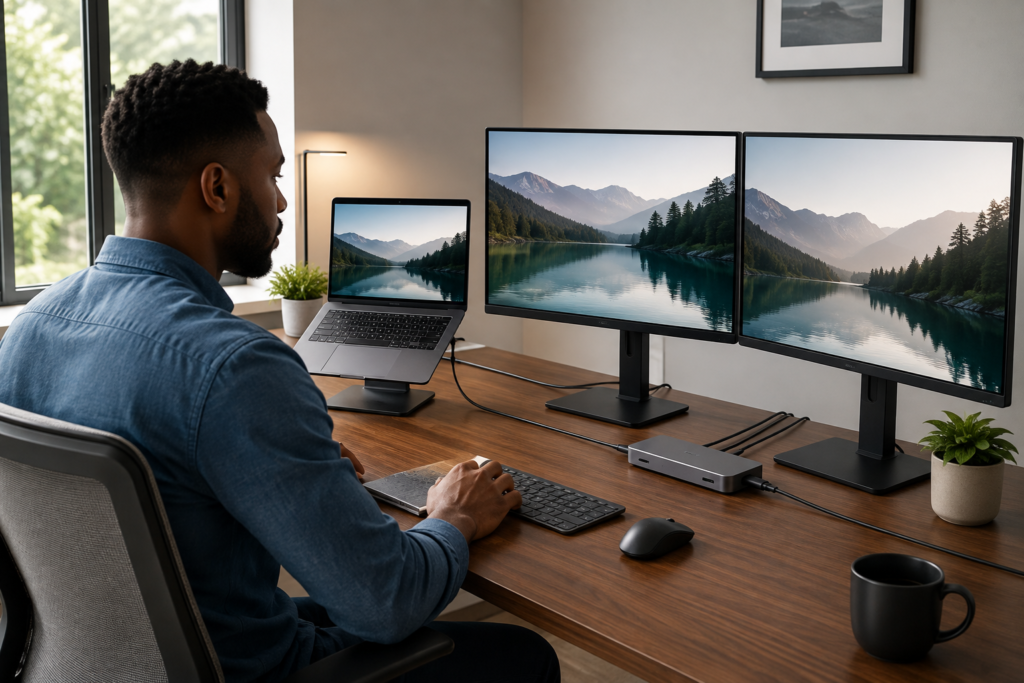
Working from a laptop is convenient—until your desk starts filling up with cables.
An external monitor needs one connection. Your keyboard and mouse need another. Then there is Ethernet, external storage, speakers, an SD card reader and your laptop charger.
Before long, your supposedly simple laptop setup doesn’t feel very simple.
A docking station can solve that problem by turning one laptop connection into a complete home-office workstation.
But docking stations aren’t all the same.
Some are designed for a basic monitor and a few accessories. Others can power multiple displays, charge a laptop and connect nearly everything on your desk through a single cable.
If you’re building or upgrading a home office, here’s what actually matters before you buy a docking station.
What Does a Docking Station Do?
A docking station expands the number and types of connections available from your laptop.
Depending on the model, one dock may provide:
- HDMI or DisplayPort connections
- USB-A ports
- USB-C ports
- Ethernet
- SD and microSD card readers
- Audio connections
- Laptop charging
- Support for multiple external monitors
Instead of reconnecting several accessories every time you sit down to work, you may only need to connect one cable to your laptop.
That is particularly useful for remote workers who use their laptop both at a permanent desk and away from it.

Disconnect one cable when you leave. Reconnect it when you’re back.
Your monitor, accessories and other compatible devices can be ready to go.
Docking Station vs USB-C Hub: What’s the Difference?
This is one of the easiest things to get confused about when shopping.
A USB-C hub is usually smaller, lighter and more portable. It is excellent when you primarily need a few additional ports.
A docking station is generally better suited to a permanent workstation.
Docks tend to offer more connectivity and may provide stronger charging capabilities, additional display outputs, Ethernet and more USB ports.
Think about where you’ll use the device.
Choose a USB-C hub when you want:
- portability
- a few additional ports
- something easy to carry with a laptop
- a less expensive way to expand connectivity
Consider a docking station when you want:
- a permanent home-office setup
- one or more external monitors
- wired Ethernet
- several USB accessories
- laptop charging
- fewer cables to connect every morning
If you’re still deciding between the two, read our complete comparison:
7 Things to Look for in a Home-Office Docking Station
1. Laptop Compatibility Comes First
Don’t buy a docking station simply because it has the ports you want.
First make sure your laptop can actually use those features.
Two laptops can have ports that look nearly identical while supporting different capabilities.
Check your laptop manufacturer’s specifications and the docking station’s compatibility information before purchasing.
Pay particular attention to:
- USB-C capabilities
- Thunderbolt support
- DisplayPort Alt Mode
- operating-system compatibility
- laptop charging requirements
- external-display limitations
This becomes especially important when connecting multiple monitors.
MARKETPLAZANOW TIP
Check compatibility before comparing prices. A cheaper dock isn’t a bargain if your laptop can’t use the features you’re buying it for.
2. Decide How Many Monitors You Actually Need
For many home-office users, monitor support is the biggest reason to buy a docking station.
Someone using one external monitor has very different requirements from someone building a two- or three-monitor workstation.
Before shopping, decide whether you want:
One external monitor:
A simpler USB-C dock may be all you need.
Two external monitors:
Look specifically for dual-display support and verify the supported resolution and refresh rate.
Three or more monitors:
Compatibility becomes much more important. Check the manufacturer’s specifications for your laptop and operating system carefully.
More display outputs on the back of a dock don’t automatically mean your particular laptop can use all of them simultaneously.
Recommended product type:
Anker Dual-Monitor USB-C Docking Station
A good choice for a home-office setup if you want to connect multiple displays while keeping your laptop and accessories organized.
3. Look at Charging Power
One of the nicest features of a desktop docking station is the ability to charge a compatible laptop through the same connection used for accessories.
This is usually listed as USB-C Power Delivery, often abbreviated PD.
You’ll commonly see docks advertising different power levels.
More isn’t automatically better.
The important question is how much power your laptop requires.
If your computer normally uses a higher-wattage charger than the dock can provide, the laptop may charge more slowly or may require its original power adapter during demanding workloads.
Check your laptop’s power requirements before buying.
4. Count the Ports You Use—Then Add a Few
Don’t just count what is connected to your laptop today.
Think about what might be connected six months from now.
A typical home-office setup could include:
- keyboard
- mouse
- webcam
- external drive
- microphone
- phone
- monitor
- Ethernet cable
- SD card
Suddenly, four ports aren’t very many.
Buying a dock with a little extra capacity can prevent you from needing another hub later.
Recommended product type:
10-in-1 or 13-in-1 USB-C docking station
This type of dock can be especially useful for a permanent desk with several peripherals.
See highly rated multi-port docking stations on Amazon →
5. Don’t Ignore Ethernet
Wi-Fi is convenient.
Ethernet can still be extremely useful in a permanent home office.
A wired network connection may provide a more consistent connection when your Wi-Fi signal is weak or your workspace is far from the router.
That can be useful for:
- video meetings
- large downloads
- cloud backups
- remote desktop sessions
- uploading large files
If you regularly work from the same desk, I would strongly consider a dock with Gigabit Ethernet.
6. Think About Your Desk, Not Just Your Computer
This sounds minor until you actually set everything up.
Where is the docking station going to sit?
Some docks lie flat. Others stand vertically. Some have ports on both the front and back.
Think about cable direction and the location of your laptop and monitors.
A well-positioned dock can make a desk look dramatically cleaner.
A badly positioned one can create a cable octopus in the middle of your workspace.
If minimizing clutter is important, look for a dock that allows permanent cables—monitor, Ethernet and power—to connect from the rear while frequently used USB or memory-card connections remain accessible.
7. Don’t Pay for Features You’ll Never Use
It’s very easy to overspend on docking stations.
A premium Thunderbolt dock with several display outputs and high-speed connections can be fantastic for the right person.
But someone connecting a keyboard, mouse and one 1080p monitor probably doesn’t need it.
Match the dock to your actual workflow.
A basic home-office user may need:
- one monitor output
- several USB ports
- Ethernet
- laptop charging
A multi-monitor worker may need:
- two display outputs
- higher power delivery
- Ethernet
- several USB ports
A power user or creator may want:
- Thunderbolt
- multiple high-resolution displays
- faster data transfer
- high-wattage charging
- additional high-speed storage connections
Pay for the capabilities you will actually use.
Docking Stations Worth Considering
Rather than choosing solely by brand, I recommend starting with the type of workstation you’re building.
Best for a Simple Dual-Monitor Office
Look for a USB-C dock offering two display connections, Ethernet, laptop charging and several USB ports.
This is the sweet spot for many remote workers.
Shop dual-monitor USB-C docking stations on Amazon →
Best for Lots of Accessories
If you regularly connect external drives, webcams, microphones, keyboards and other peripherals, look at larger multi-port docks.
A 12-in-1 or 13-in-1 design gives you considerably more room to expand.
Compare multi-port docking stations on Amazon →
Best for a Premium Workstation
Thunderbolt docking stations are worth considering for compatible laptops when higher bandwidth, powerful charging and more demanding display configurations are priorities.
They usually cost more, so verify that your laptop supports the features before paying the premium.
See Thunderbolt docking stations on Amazon →
What About a Portable USB-C Hub?
You may not need a docking station at all.
If your priority is something small enough to put in a laptop bag, a USB-C hub may make more sense.
MarketPlazaNow already has a complete guide for that:
For travelers and hybrid workers, a compact hub can provide HDMI, USB and card-reader connections without taking up much space.
For a permanent multi-monitor workstation, however, a full docking station is usually more convenient.
Don’t Forget Monitor Position
Adding a docking station makes it much easier to run an external monitor—or several of them—but monitor placement matters too.
The goal isn’t simply to create the biggest workstation possible.
It should be comfortable to use.
If you’re still choosing your main display, see:
Best Monitors for Working From Home
You can also improve laptop positioning when you’re using the laptop screen alongside an external monitor:
Best Laptop Stands for Remote Work
A laptop stand and docking station work particularly well together because the laptop can remain elevated while your keyboard, mouse, monitors and other accessories connect through the dock.
Quick Buying Checklist
Before ordering a docking station, check:
- Your laptop’s exact model
- USB-C or Thunderbolt compatibility
- Number of external monitors needed
- Maximum supported monitor resolution
- Required charging wattage
- Number of USB-A ports
- Number of USB-C ports
- Ethernet availability
- SD/microSD requirements
- Operating-system compatibility
- Available desk space
Taking five minutes to check those details can save you from buying a dock that looks perfect but doesn’t work properly with your computer.
Frequently Asked Questions
Is a docking station worth it for working from home?
It can be. If you regularly connect a laptop to a monitor, keyboard, mouse, Ethernet or other accessories, a docking station can simplify your setup considerably.
Can a docking station charge my laptop?
Many USB-C and Thunderbolt docks support laptop charging through Power Delivery, but charging capability and wattage vary. Check both the dock specifications and your laptop’s requirements.
Can I connect two monitors through a docking station?
Many docking stations support dual monitors, but the number of displays, resolutions and extended-display capabilities depend on the dock, laptop and operating system.
Is Thunderbolt better than USB-C?
Thunderbolt can provide greater bandwidth and advanced connectivity, but not everyone needs it. A standard USB-C docking station can be perfectly adequate for many home-office setups.
Is a USB-C hub cheaper than a docking station?
Usually, yes. Compact USB-C hubs tend to provide fewer features and are designed more for portability, while full docking stations are commonly designed for permanent workstations.
Should I buy a dock with more ports than I currently need?
A few extra ports can be useful. Home-office setups tend to accumulate accessories, and having some room to expand may prevent you from needing another adapter later.
Final Thoughts
The best docking station isn’t necessarily the one with the most ports.
It’s the one that matches your laptop and your workspace.
For most remote workers, I’d prioritize compatibility, monitor support, adequate laptop charging, Ethernet and enough USB connections for everyday accessories.
If you’re building a permanent desk with multiple monitors, a docking station can make the entire setup cleaner and easier to use.
If you mostly work on the go, a smaller USB-C hub may still be the smarter purchase.
Either way, check compatibility before buying. That’s the detail most likely to determine whether your new setup works the way you expect.
MarketPlazaNow participates in affiliate programs, including the Amazon Services LLC Associates Program. We may earn a commission from qualifying purchases made through links on this site, at no additional cost to you.