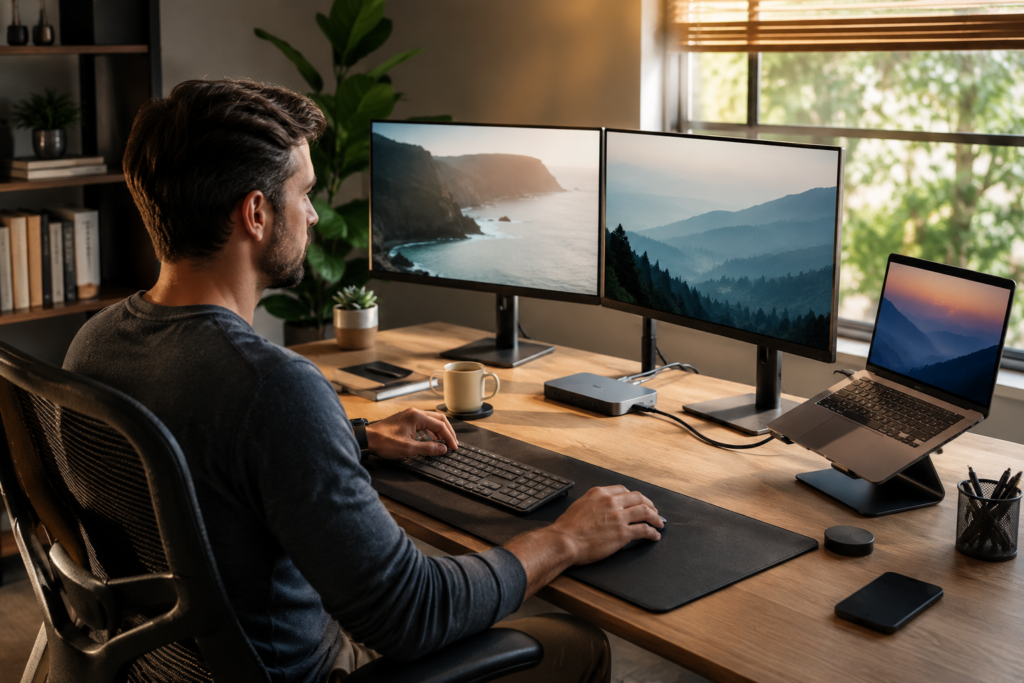
Build a clean work from home desk setup with the right monitor, USB-C hub or docking station, laptop stand, accessories and simple cable management.
A good work-from-home desk setup should make your workday easier—not leave you surrounded by tangled cables, adapters, chargers, and accessories.
If you use a laptop for work, adding an external monitor can give you much more room for email, spreadsheets, research, scheduling systems, documents, video meetings, and everyday multitasking. Add a docking station or USB-C hub, and you can connect many of your accessories through one central device instead of plugging everything directly into your laptop.
The trick is choosing products that actually improve the workspace rather than simply adding more gadgets to the desk.
In this guide, we’ll build a clean and practical work-from-home setup using a monitor, USB-C docking station or hub, laptop stand, keyboard and mouse, monitor arm, cable-management accessories, and comfortable desk lighting.
You don’t need everything at once. Start with the upgrades that solve your biggest workspace problems and build from there.
What Do You Need for a Good Work From Home Desk Setup?
For most people, a comfortable and organized home-office workstation can be built around seven basic components:
- Laptop or desktop computer
- One or two external monitors
- USB-C docking station or hub
- External keyboard and mouse
- Laptop stand or monitor arm
- Cable-management system
- Comfortable task lighting
The exact products you need depend on your computer and the type of work you do.
Someone who primarily answers email and works in a browser may be perfectly happy with one external monitor and a small USB-C hub.
Someone who spends the day moving between several programs may benefit much more from two monitors and a full docking station.
The goal isn’t to build the most expensive setup.
It’s to build the one that makes your work easier.
1. Start With the Right Monitor
Your monitor is one of the most important pieces of your home-office setup because you’ll probably look at it for hours every day.
For general work-from-home use, a 24-inch or 27-inch monitor is a comfortable starting point for many people.
A larger display can give you enough room to keep several windows visible without constantly minimizing and reopening applications.
When comparing monitors, consider:
- Screen size
- Resolution
- Height adjustment
- Viewing angles
- Available ports
- VESA mounting compatibility
- Your available desk space
A 27-inch 1440p monitor can be especially appealing for productivity because it provides more usable screen space than a basic 1080p display without requiring an enormous desk.
Amazon Pick: 27-Inch Productivity Monitor
Look for a well-reviewed 27-inch QHD/1440p monitor from an established manufacturer such as Dell, LG, ASUS, Samsung or Acer.
For a work-from-home setup, prioritize good text clarity, an adjustable stand and VESA compatibility over gaming-focused features you may never use.
👉 Check 27-Inch QHD Monitors on Amazon
Already comparing monitors?
Read next:
“Best Monitors Working From Home”
2. Consider Two Monitors for Heavy Multitasking
One monitor is enough for many people.
But dual monitors can be incredibly convenient when your work requires several applications at the same time.
For example, you might keep:
- Email on one screen
- Your primary work application on another
- Calendar on your laptop
- Reference documents open beside your main work
Instead of constantly switching between windows, the information you need stays visible.
That doesn’t mean everyone needs three screens.
If your job is relatively simple, one good external monitor plus your laptop screen may provide plenty of workspace.
But if you’re constantly moving between programs, a second monitor can be one of the most noticeable productivity upgrades you make.
3. Use a USB-C Docking Station as the Center of the Setup
If you connect several accessories to your laptop every day, a docking station can dramatically simplify the setup.
Instead of having separate cables running directly into every available laptop port, compatible accessories connect to the dock.
Depending on your laptop and docking station, a dock may support:
- One or more external monitors
- USB keyboard
- Mouse
- Ethernet
- External storage
- Headphones or speakers
- SD cards
- Laptop charging
For someone who occasionally takes the laptop away from the desk, this can be especially convenient.
Instead of unplugging five or six devices, you may only need to disconnect the main connection between the laptop and dock.
Amazon Pick: Plugable Dual-Monitor USB-C Docking Station
Plugable makes several docking stations designed for productivity setups, including models capable of supporting dual external monitors.
A dock like this makes the most sense when you want a more permanent workstation with multiple displays and accessories.
Before purchasing, check the specific model’s compatibility with your laptop, operating system and desired monitor configuration.
Best for: Dual-monitor home-office setups
Why we like this product category:
- Centralizes multiple connections
- Reduces cables connected directly to the laptop
- Can support multiple displays on compatible systems
- Adds additional USB ports
- Some models provide laptop charging
- Useful for people who regularly disconnect their laptop from the desk
👉 Check Plugable USB-C Docking Stations on Amazon
If multiple monitors are your priority, see our dedicated guide:

Alt text: Laptop connected to two monitors through a compact USB-C docking station in an organized work-from-home desk setup.
4. Don’t Buy a Docking Station If a USB-C Hub Is Enough
This is where people sometimes spend more money than necessary.
A full docking station isn’t automatically better.
If you only need HDMI, a few USB ports and charging, a compact USB-C hub may be all you need.
A USB-C Hub Makes Sense If You Need:
- HDMI for one monitor
- Extra USB-A or USB-C ports
- SD or microSD card reader
- Ethernet
- Pass-through charging
- Something compact enough to travel with
A Docking Station Makes More Sense If You Need:
- Multiple external monitors
- Several peripherals
- A permanent desk setup
- More ports
- Ethernet
- Higher charging capability
- One central workstation connection
Amazon Pick: Anker USB-C Multiport Hub
Anker offers compact USB-C hubs with combinations of HDMI, USB ports, card readers, Ethernet and power-delivery support.
These can be a good middle ground for someone who has outgrown the limited number of ports on a laptop but doesn’t need a full desktop docking station.
Best for: Smaller home offices and hybrid workers
Why we like this product category:
- Compact
- Easy to carry
- Less expensive than many full docking stations
- Expands laptop connectivity
- Useful at home and while traveling
👉 Check Anker USB-C Hubs on Amazon
Not sure which one you need?
Read our comparison:
You can also see more affordable hub options here:
Important Compatibility Note
USB-C can be confusing because identical-looking USB-C ports can support different capabilities.
Before buying a hub or docking station, verify whether your laptop’s port supports the features you need, particularly:
- Video output
- Power delivery
- Thunderbolt
- Multiple external displays
Also verify compatibility with your operating system and exact laptop model.
5. Free Up Desk Space With a Monitor Arm
Traditional monitor stands can take up a surprising amount of desk space.
A monitor arm attaches to the desk and raises the display above the work surface, leaving more usable room underneath.
With a dual-monitor setup, a dual arm can also help position the displays at similar heights.
Amazon Pick: MOUNTUP Dual Monitor Arm
A MOUNTUP dual-monitor arm or comparable adjustable VESA monitor mount can be a useful addition to a dual-screen workstation.
Before ordering any monitor arm, check:
- Your monitor’s weight
- Screen-size limits
- VESA mounting pattern
- Desk thickness
- Clamp requirements
Never assume a monitor will fit simply because the screen size is within the advertised range.
Best for: Dual-monitor setups and smaller desks
Why we like this product category:
- Frees desktop space
- Allows more flexible monitor positioning
- Can help organize monitor cables
- Makes a dual-monitor setup look cleaner
👉 Check MOUNTUP Dual Monitor Arms on Amazon
6. Raise Your Laptop With an Adjustable Stand
Once you start using an external keyboard and mouse, your laptop doesn’t necessarily need to sit flat on the desk.
An adjustable laptop stand raises the laptop screen and can make it easier to position beside your primary monitor.
That means your laptop can become a useful second screen instead of simply taking up desk space.
You could keep your main work on the external monitor while using the laptop for:
- Calendar
- Messaging
- Music
- Reference material
- Video calls
Amazon Pick: Adjustable Aluminum Laptop Stand
Look for a sturdy adjustable aluminum laptop stand with:
- Non-slip pads
- Ventilation around the laptop
- Adjustable height or angle
- A stable base
- Compatibility with your laptop size
Best for: Laptop + external-monitor workstations
👉 Shop Adjustable Laptop Stands on Amazon
For more help choosing a stand:
7. Add a Comfortable Wireless Keyboard and Mouse
Once the laptop is elevated, an external keyboard and mouse become much more important.
A wireless set can also help reduce visible cable clutter.
For everyday office work, you don’t necessarily need expensive gaming peripherals.
Comfort, reliability and battery life are usually more important.
Amazon Pick: Logitech Wireless Keyboard and Mouse Combo
Logitech offers several keyboard-and-mouse combinations designed for everyday productivity.
A wireless combination is particularly convenient for a minimalist desk because both peripherals can work without separate cables stretching across the work surface.
Best for: Everyday home-office productivity
Look for:
- Comfortable key spacing
- Reliable wireless connection
- Long battery life
- Mouse shape that feels comfortable
- Compatibility with your operating system
👉 Check Logitech Wireless Keyboard & Mouse Combos on Amazon
8. Hide the Cables You Can’t Eliminate
Even the cleanest home-office setup still has wires.
Your monitors need power.
Your docking station may need power.
Your laptop needs charging.
Your desk lamp needs electricity.
The goal isn’t to eliminate every cable.
The goal is to control where those cables go.
Some of the most useful cable-management accessories include:
- Under-desk cable trays
- Reusable hook-and-loop cable ties
- Adhesive cable clips
- Cable sleeves
- Power-strip mounts
- Shorter replacement cables when appropriate
One of the easiest improvements is moving the power strip off the floor or desktop and securing it underneath the desk.
Then excess cable length can be bundled inside an under-desk tray instead of hanging down behind your workspace.
Amazon Pick: Under-Desk Cable Management Tray
A metal or durable plastic under-desk cable tray can hold a power strip, adapters and excess cable length out of sight.
Some models clamp onto the desk and require no drilling, while others screw into the underside for a more permanent installation.
Best for: Anyone trying to create a cleaner-looking workstation
👉 See Under-Desk Cable Management Trays on Amazon
This is one of the least glamorous home-office products—and one of the upgrades that can make the biggest visual difference.
9. Improve Your Desk Lighting
A beautiful monitor setup can still be uncomfortable if the lighting around it isn’t right.
Natural daylight can work wonderfully, but strong reflections or glare across the monitor can become distracting.
At night, working with a bright screen in an otherwise dark room isn’t ideal either.
A good adjustable desk lamp or monitor light bar lets you control the lighting around your workspace.
Amazon Pick: Monitor Light Bar or Adjustable LED Desk Lamp
For a very compact desk, a monitor light bar can be particularly attractive because it sits above the monitor instead of taking up space on the desktop.
If you prefer more flexible lighting, choose an adjustable desk lamp.
Best for: Evening work and desks with limited natural light
👉 See Monitor Light Bars & Desk Lamps on Amazon
For more lighting ideas:
A Simple Work From Home Desk Layout
Once you have the right equipment, arrangement matters.
Center: Main Monitor
Place the display you use most directly in front of your primary working position.
Side: Second Monitor or Laptop
Position the secondary screen where you can view it without constantly twisting your body.
Front: Keyboard and Mouse
Keep enough room in front of the displays for comfortable keyboard and mouse use.
Back or Side: Docking Station
Your dock doesn’t need to become the centerpiece of the desk.
Keep it accessible while routing as many cables as possible toward the back of the workstation.
Under the Desk: Power and Cable Management
This is where your power strip, excess cable length and adapters can disappear.
The result is a desk where the things you actually use remain accessible without a web of cables running across the work surface.
Our Recommended Upgrade Order
If you’re starting with a laptop and basic desk, don’t buy everything at once.
Upgrade according to what’s causing the biggest problem.
1. External Monitor
Start here if limited screen space is slowing you down.
2. Keyboard and Mouse
Add these once you’re regularly using an external display.
3. Laptop Stand
Raise the laptop and turn its screen into useful secondary workspace.
4. USB-C Hub or Docking Station
Add this once you’re tired of constantly plugging and unplugging accessories.
5. Monitor Arm
Consider this when you want more desk space or more flexible monitor positioning.
6. Cable Management
Clean up everything you’ve connected.
7. Better Lighting
Finish the setup with lighting appropriate for your room and working hours.
You may already own some of these products, so there’s no reason to replace equipment that’s working well.
Good vs. Better vs. Premium Work From Home Setup
Good: Simple Laptop Setup
A practical starter setup might include:
- Laptop
- One external monitor
- USB-C hub
- Wireless keyboard and mouse
- Laptop stand
This is enough for many remote workers.
Better: Dual-Screen Productivity Setup
Step up to:
- Laptop
- Two monitors
- Docking station
- Wireless keyboard and mouse
- Monitor arm
- Cable-management tray
This is an excellent configuration for someone who works across several programs throughout the day.
Premium: Complete Workstation
A more advanced setup might include:
- High-resolution monitors
- Full-featured docking station
- Dual-monitor arm
- Adjustable laptop stand
- Premium keyboard and ergonomic mouse
- Ethernet
- Under-desk cable management
- Monitor light bar
- Additional ergonomic accessories
The premium setup isn’t automatically the best choice.
Buy according to what will actually improve your workday.
What We Would Buy First
If we had to choose only three upgrades for a laptop-based home office, we’d start with:
1. A good external monitor
The extra screen space can immediately make everyday multitasking easier.
2. A USB-C hub or docking station
Once several peripherals are involved, centralizing the connections makes the workstation much easier to manage.
3. A laptop stand or monitor arm
Getting screens properly positioned while reclaiming desk space can make the entire setup feel more organized.
Everything else can be added gradually.
Common Work From Home Desk Setup Mistakes
Buying a Dock Without Checking Laptop Compatibility
This is probably the biggest mistake to avoid.
The presence of a USB-C port does not guarantee every USB-C docking feature will work.
Check the laptop manufacturer’s specifications before purchasing.
Buying More Equipment Than You Need
A desk filled with gadgets isn’t necessarily productive.
If you don’t need two external monitors, don’t buy two simply because dual-monitor setups look impressive.
Forgetting About Cable Length
Decide where your monitor, docking station and power strip will be located before ordering very short cables.
Ignoring VESA Compatibility
If you want a monitor arm, make sure the monitor supports the mounting pattern required by the arm.
Prioritizing Appearance Over Comfort
A minimalist desk isn’t useful if you’re uncomfortable using it.
Keep the accessories that genuinely make your workday better.
Frequently Asked Questions
What is the best monitor size for working from home?
A 24-inch or 27-inch monitor is a practical choice for many home offices. The best size depends on your available desk space, viewing distance, resolution and the applications you use.
Is one monitor enough for working from home?
Absolutely. Many people work comfortably with one external monitor plus their laptop screen. Dual monitors become more useful when you regularly need several applications visible at the same time.
Is a USB-C docking station worth buying?
It can be worth it if your laptop regularly connects to multiple monitors and peripherals. A dock can centralize those connections and make it easier to disconnect the laptop from your desk.
Should I buy a USB-C hub or docking station?
Choose a USB-C hub if you mainly need a few additional ports, one display connection or a portable accessory.
Consider a docking station when you need multiple monitors, Ethernet, numerous peripherals and a more permanent workstation.
Can I connect two monitors through USB-C?
Some laptops and docking stations support multiple external monitors through USB-C or Thunderbolt, but compatibility varies significantly. Always check your laptop, operating system and docking-station specifications before purchasing.
How can I hide cables on my desk?
Use an under-desk cable tray, reusable cable ties and adhesive clips to route wires along the back or underside of the desk. Mounting or securing the power strip underneath the desk can make an especially noticeable difference.
Do I need a monitor arm?
No. A monitor arm is optional. It’s most useful when you want to reclaim desk space, adjust display positioning more freely, or organize a dual-monitor setup.
Final Thoughts
You don’t need a room full of expensive equipment to build a great work-from-home desk.
Start with the basics.
A good monitor gives you more usable screen space. A properly chosen USB-C hub or docking station can simplify your connections. A laptop stand or monitor arm can reclaim desk space. A comfortable keyboard and mouse make the workstation easier to use, while simple cable-management accessories keep everything under control.
The best setup is not necessarily the one with the most technology.
It’s the one that disappears into the background and lets you concentrate on your work.
Start with the upgrade that solves your biggest problem today, then build the rest of your workspace gradually.
Continue Building Your Home Office
Best Monitors for Working From Home
USB-C Hub vs Docking Station: Which One Do You Really Need?
Best USB-C Dock for Multiple Monitors
Best Laptop Stands for Better Posture
Best Desk Lamps for Eye Comfort
MarketPlazaNow participates in affiliate programs, including the Amazon Services LLC Associates Program. As an Amazon Associate, MarketPlazaNow may earn from qualifying purchases made through affiliate links, at no additional cost to you.
Product availability, specifications, prices and compatibility can change. Always verify current product information and compatibility with your equipment before purchasing.